How the Internet Works — From Your Browser to a Server Across the World

A junior member who had just joined our team asked me this over lunch: "when you type google.com and press Enter, what actually happens?" I gave him a dirty look and thought ( Isn't this too basic that everyone should know 🤔 ) but still gave him the two-line version, DNS resolves it and the page loads, and while he nodded along I realised that I'd just skipped past multiple separate flows I had never actually connected in my own head.
It sounded like a basic question at first but It wasn’t, once you sit down to answer it properly. So that’s what I did, wrote out the whole thing for myself, every step that runs in the few hundred milliseconds between Enter and the page appearing. I’ll go through it in the same order it actually happens.
It’s not one network, it’s a lot of them
Most people picture the internet as one big thing sitting somewhere. A giant computer, a cloud or something else but it isn’t. It’s a bunch of separate networks that have agreed to carry each other’s traffic. Your home Wi-Fi is one network. Your ISP is a much bigger one. Google’s datacenters, your bank, a university in Germany, a cloud region in Singapore, every one of those is its own network run by its own people.
They manage to talk to each other because they agree on one thing: how to address data. That’s IP, the Internet Protocol. As long as everyone speaks IP, a packet leaving your laptop can pass through a dozen networks it has never seen and still end up on the right server on the far side of the world.
Each of those big networks is called an Autonomous System, and they tell each other which address ranges they can reach using a protocol called BGP. You don’t need to know how BGP works yet. Just remember the basic picture: a lot of separate networks, all speaking IP, figuring out between themselves who can reach which addresses.

Figure 1 — The internet is a network of networks, not a single thing
You type the URL
It starts with the thing you never think about, typing https://google.com and pressing Enter. There’s more stuff into that string than it looks like. Let’s Break it apart:
scheme://host[:port]/path
- The scheme (
https): how to talk. Secure HTTP here. - The host (
google.com): which server. - The port (
:443for HTTPS,:80for plain HTTP): which door on it. Usually filled in for you, so you never type it. - The path (
/,/search): what you want from it.
Now the browser has a problem. It’s holding a name, google.com, and the network doesn’t deal in names. It moves data by number. So before anything else can happen, that name has to turn into a number and that number is nothing but an IP Address.
First the name becomes a number
That’s DNS, the Domain Name System, often called internet’s phone book. Give it a name, it gives back a number. The browser doesn’t ask just one server though. It checks the closest answers first and works outward only if it has to:
- Browser cache: have i gone to this website up recently? If yes, done.
- OS cache: the operating system keeps its own recent answers.
- Resolver: if nobody local knows, the question goes to a DNS resolver, usually your ISP’s, or a public one like
8.8.8.8(Google) or1.1.1.1(Cloudflare). - If the resolver doesn’t know either, it asks the root servers, which point it at the TLD servers for
.com, which point it at the authoritative nameserver forgoogle.com, which finally coughs up the answer.
After roaming around you get something real, an IP like 142.250.183.14. The name is now an address, and the browser knows where to send things now.
I won’t do the DNS deep-dive here, there are already a couple of posts for it — DNS vs Nameservers for how names and nameservers fit together, and Why 8.8.8.8 Is Fast Everywhere: Anycast in Plain English for why the public resolvers feel instant wherever you are.
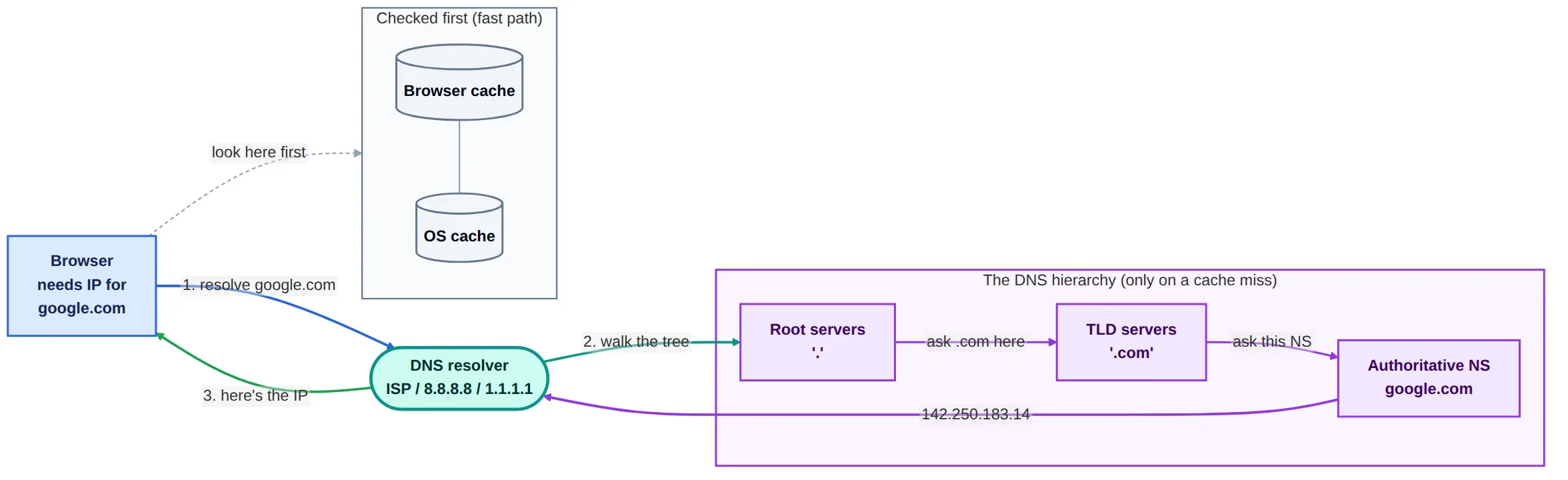
Figure 2 — Browser asks the resolver, which walks root → TLD → authoritative to find the IP
Then the packets have to actually get there
An address by itself still doesn’t move anything. The data has to physically travel. Out of your house, through your ISP, across some undersea cable, into a datacenter somewhere. Routing is how it finds the path.
Your data gets chopped into small chunks called packets, and each packet is stamped with where it came from and where it’s headed. From there it’s a relay. Your home router is the first hop. It passes the packet to your ISP. From the ISP it bounces from router to router, and every router answers the same single question: for this destination, who do I send it to next? None of them knows the full path. Each one only knows the next reasonable hop.
Stack enough of those one-hop decisions on top of each other and you get a complete path from your laptop to Google, even though no single machine ever had the whole route written down anywhere.
If you want to watch it happen, run traceroute google.com (or tracert on Windows). It prints each hop as it goes. The first time I ran it I just sat there watching the packet bounce halfway around the world.

Figure 3 — Each router answers one question — "for this destination, who's next?" — and no single machine knows the full route
A raw packet isn’t reliable, so TCP steps in
Plain IP is best-effort, which is a polite way of saying it promises nothing. Packets can go missing, arrive out of order, or show up twice. That’s fine for some things, but not for a web page — you can’t read a paragraph that arrived in three pieces, all mixed up.
TCP sits on top of IP and sorts this out. It runs a handshake first, both ends saying SYN, SYN-ACK, ACK, which is really just “you there?” / “yeah, you?” / “yep” before any real data moves. Once that’s agreed, it numbers every chunk, asks again for anything that goes missing, reassembles everything in the right order at the far end, and paces itself so it doesn’t flood a slow link.
End result, that mess of unreliable packets now behaves like one ordered, reliable pipe between you and the server.
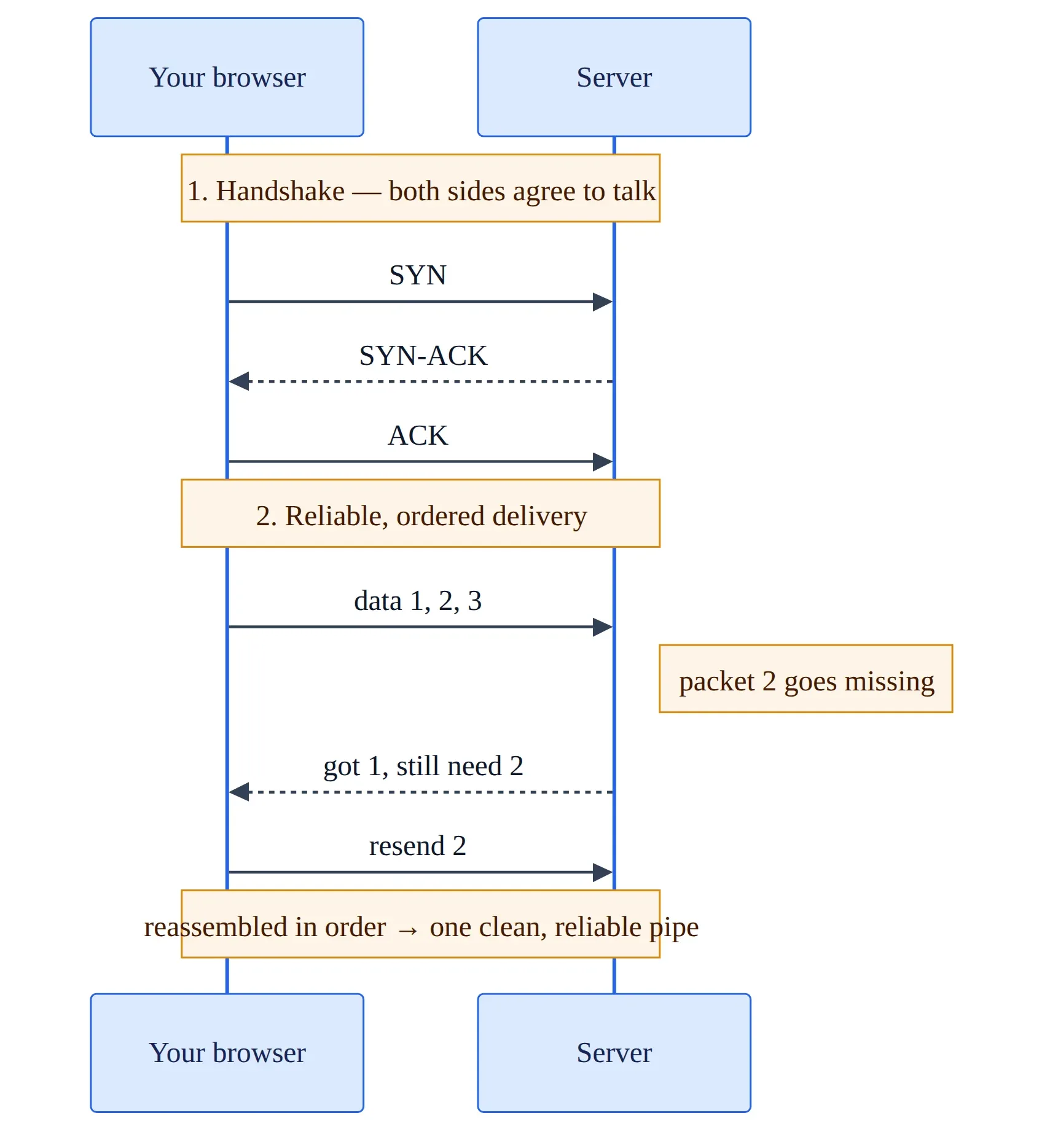
Figure 4 — The handshake sets up the connection, then anything lost is re-sent and everything arrives in order
The lock icon is TLS proving who you’re talking to
The connection works now, but it’s wide open. Anyone on the path can read it or change it. Bad cafe Wi-Fi, your ISP, whoever happens to be in between. That’s the whole reason https exists instead of plain http, and TLS is the part doing it. The padlock in your address bar is TLS having already done its job.
There’s a second handshake right after the TCP one, the TLS handshake, and it sorts out two things. First, identity: the server shows a certificate that says “I’m actually google.com,” signed by an authority your browser already trusts, and if that certificate is missing or expired or signed by someone it doesn’t trust, you get the full-screen warning instead. Second, a shared secret: the two sides agree on encryption keys without ever putting the secret on the wire in the clear.
After that, everything in the pipe is encrypted. Sniff the wire and you get noise, not passwords. Now you can actually ask for the page.
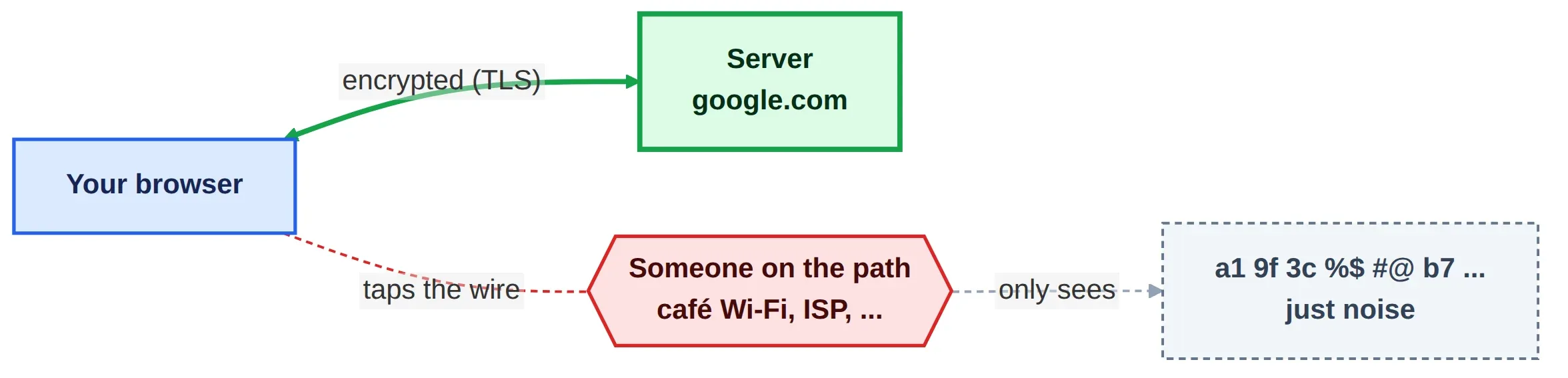
Figure 5 — Once TLS is up, someone on the path can still see traffic flowing, but only as scrambled bytes
And now, actually asking for the page
Name resolved, packets routed, connection up and secured. Finally you get to do the thing you came for. The request is plain text:
GET / HTTP/1.1
Host: google.com
That’s HTTP, and it says about what it looks like: give me whatever’s at / on google.com. The server replies with a status code (200, 404, 301, the ones you’ve seen) and, for a normal page, the HTML.
That first chunk of HTML is almost never the whole page though. The browser reads it and finds it needs more, the CSS, the JavaScript, images, fonts, and each of those is another request, often off to a completely different host (a CDN, an image server, some analytics domain). So one “page load” is really dozens of round trips, and every one of them pays for the distance.
This is why “the server is fine but the page feels slow” is a real thing. It’s the number of round trips × distance, not raw server load. Keeping the static stuff closer to the user (a CDN) is the usual fix.
Then the browser draws it
The last part never leaves your machine. As the responses come back, the browser builds the HTML into a tree (the DOM), fetches the CSS, JS, images and fonts it pointed to, works out the layout, runs the JavaScript, and paints the lot onto your screen. That’s the page.

Figure 6 — One page load as a waterfall: DNS → TCP → TLS → HTTP → render
Final thoughts
So that’s the whole trip. The name turns into an IP, that IP gives the packets a route across all those networks, and once the connection is up and encrypted, the browser asks for the page and draws whatever comes back.
This is also the foundation for most of the bigger networking topics. A CDN, a load balancer, a service mesh — they’re all built on these same steps, just solving one part of it better. Once the basics here make sense, those are much easier to pick up.
And the next time a page feels slow, you’ll have a rough idea of which step to look into.
Till the next time — Happy learning :)